


Converting centimetres to pixels isn't as simple as you might think. There's no magic number because one crucial piece of information is missing: pixel density. This is the secret ingredient that dictates how many pixels fit into a physical inch, and without it, any conversion is just a wild guess.
Bridging the Physical and Digital Worlds

Ever designed something that looked absolutely perfect on your monitor, only to have it print out looking fuzzy or strangely stretched? That’s a classic symptom of the disconnect between the physical world of centimetres (cm) and the digital world of pixels (px).
Think of it like trying to translate between two languages. You can't just swap words one for one; context is everything. In the world of design, that context is pixel density, a concept measured in Dots Per Inch (DPI) or Pixels Per Inch (PPI).
Why a Direct Cm to Px Conversion Fails
A centimetre is a centimetre. It’s a fixed, absolute unit of measurement, whether you're using a ruler in London or looking at blueprints in Tokyo. It never changes.
A pixel, on the other hand, is a completely different beast. It has no fixed size. It's just the smallest single point of colour on a screen, and its physical size varies wildly from a giant stadium display to the ultra-sharp screen on your smartphone.
This is exactly why a simple cm-to-px calculator without a DPI setting is fundamentally broken. To properly bridge the gap, you first have to decide how many pixels you want to cram into a specific physical space.
The Key Takeaway: The relationship between centimetres and pixels isn't fixed. It’s entirely dependent on the resolution (DPI/PPI) of the screen or printed page you're working with.
Getting your head around this single idea is the most important step towards mastering design for both screen and print. It’s what ensures your digital vision translates into the real world exactly as you intended. Let’s start by demystifying the role of DPI.
Getting to Grips with DPI and PPI
To really nail any cm to px conversion, you first have to understand the one concept that bridges the physical world and the digital screen: pixel density. We measure this in either DPI (Dots Per Inch) for printing or PPI (Pixels Per Inch) for screens. The terms get thrown around interchangeably, but they both point to the same core idea.
Think of it like this. Imagine two TVs, both the same size. One shows a blurry, blocky picture, while the other is so sharp you can count the blades of grass in a nature documentary. The difference isn't the physical size of the screens; it's the pixel density. The sharper screen simply packs more pixels into every single inch.
So, What Are DPI and PPI, Really?
DPI and PPI are basically the "exchange rate" for your conversion. They tell you exactly how many pixels are crammed into a one-inch line. A higher number means a denser cluster of pixels, which gives you a higher-quality, sharper image. A lower number means the pixels are more spread out, which can look soft or "pixelated" if you get too close.
This density is the crucial missing piece of the puzzle. Without knowing the DPI or PPI, telling a designer to make something "5 cm wide" is totally meaningless in the digital world. Is that 5 cm on a crusty old monitor or on a high-resolution print for a gallery? The final pixel count will be wildly different.
A design's final physical size isn't just about its pixel dimensions—it's determined by the resolution it's displayed or printed at. That’s the fundamental rule of converting cm to px.
Understanding this relationship is everything. Look at the UK's metrication journey, which started back in 1965. As the country moved from imperial to metric units, digital design standards had to keep up. Today, while most screens just assume a standard of 96 DPI, UK print standards often demand a much higher 300 DPI. At that resolution, 1 cm works out to exactly 118.11 pixels—a calculation directly shaped by the switch to the metric system. You can read more about the history of metrication in the United Kingdom and its impact on standards.
The Common Industry Standards
While DPI can technically be any number, you'll constantly run into a few key standards in your work. Knowing which one to aim for is the key to getting professional, predictable results.
- 72/96 DPI for Web and Screens: Back in the day, 72 DPI was the standard for Apple monitors, and 96 DPI became the go-to for Windows. Today, 96 DPI is the most common default for web browsers and general on-screen work.
- 300 DPI for High-Quality Print: This is the undisputed gold standard for professional printing. If you're designing anything that needs to look crisp on paper—brochures, business cards, photos—using 300 DPI ensures the final product is sharp and totally free of any jagged pixelation.
The Cm to Px Conversion Formula Unpacked
Ready to peek under the bonnet and see how this whole cm to px thing actually works? It’s not some complex digital wizardry—it’s just simple maths. And once you get it, you’ll have total control over your designs.
The entire process boils down to one straightforward formula. This is the key that unlocks accurate translations between physical measurements and their digital counterparts.
The Core Formula: Pixels = (Centimetres × DPI) / 2.54
Let’s break that down, piece by piece. You’ve got the physical world (centimetres), the digital world (pixels), and the crucial bridge connecting them (DPI).
Understanding Each Part of the Formula
To use a converter properly—or just crunch the numbers yourself—you need to know what each part of the equation is doing.
- Centimetres (cm): This is your starting point. It’s a real-world, absolute measurement, like a 10 cm photo or a 2 cm wide button.
- DPI (Dots Per Inch): Think of this as the "exchange rate." It tells you how many pixels get packed into every inch of space. More DPI means more pixels, which means a sharper result.
- The Magic Number 2.54: Why this specific number? Because there are exactly 2.54 centimetres in one inch. Since DPI is measured per inch, we need this constant to convert our centimetre value into inches so the whole equation lines up perfectly.
This infographic shows how different DPI values are used for web and print, which directly impacts the sharpness of the final image.
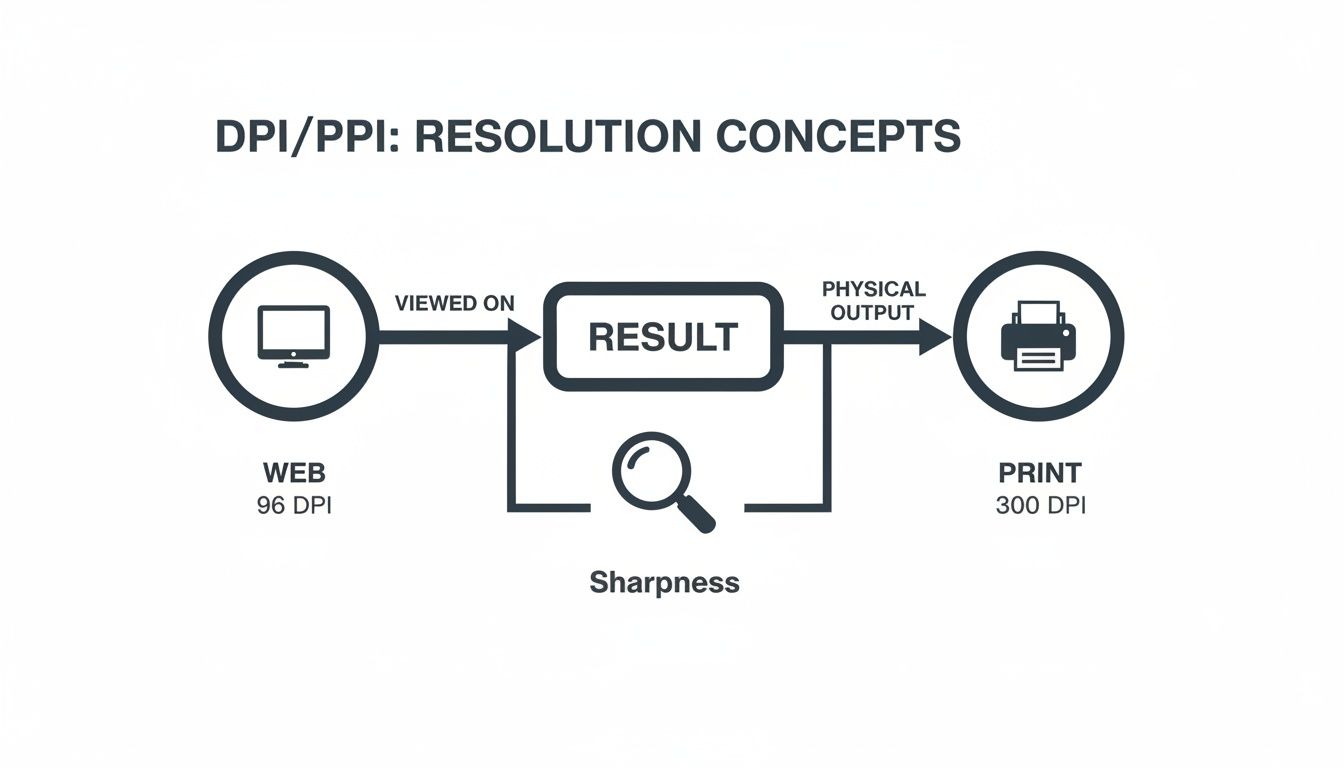
As you can see, choosing the right DPI—like 96 for a screen or 300 for a business card—is the first, most important step to getting the quality you need.
Cm to Px Conversion Examples
Let’s put the formula to work with a real-world scenario. A client asks for a graphic that’s 15 cm wide. How many pixels is that? Well, it depends entirely on where that graphic is going to live.
Example 1: A 15 cm Web Banner (96 DPI) For a standard computer screen, 96 DPI is the number to use.
- Calculation:
(15 cm × 96 DPI) / 2.54 - Result:
1440 / 2.54 - Final Pixels: Roughly 567 pixels wide.
Example 2: A 15 cm Print Graphic (300 DPI) Now, if that same graphic is destined for a high-quality brochure, we need to aim for 300 DPI.
- Calculation:
(15 cm × 300 DPI) / 2.54 - Result:
4500 / 2.54 - Final Pixels: A much larger 1772 pixels wide.
Look at that difference. The exact same 15 cm measurement needs over three times as many pixels for print as it does for the web. This is exactly why you can't ignore DPI. Getting a handle on this simple formula gives you a solid foundation for any project, digital or physical.
Where This Conversion Actually Matters

Okay, let's move from theory to the real world. Knowing the formula is one thing, but using it correctly is what separates a pro from an amateur. This is where a cm-to-px converter becomes an essential tool for web developers and graphic designers alike.
Think about it: a client asks for a "5cm wide logo". That simple request means two completely different things depending on whether you're building a website or designing a business card. Your understanding of DPI and the final output context is your most powerful asset here.
For Pixel-Perfect Print Designs
In the print world, physical measurements are absolute. When you’re firing up Adobe Photoshop or Illustrator to design something that will be held in someone's hands, you have to get the pixel dimensions right from the start. Fail here, and you’re looking at a blurry, pixelated mess.
Let’s say you’re designing an A4 flyer. You know its physical dimensions are 21.0 x 29.7 cm, and for a sharp, professional result, it must be printed at 300 DPI. This is where your conversion skills come in.
- Width:
(21.0 cm × 300 DPI) / 2.54 = 2480 pixels - Height:
(29.7 cm × 300 DPI) / 2.54 = 3508 pixels
By setting up your digital canvas to 2480 x 3508 pixels, you've guaranteed your design will print perfectly to A4 size with zero loss of quality. For professional print jobs, this kind of precision isn't just nice to have—it's non-negotiable.
For Web Development and CSS
Web developers live in a much more fluid environment. While CSS technically supports units like cm, they’re almost never used for layout because they don't adapt. A box defined as 5cm wide will look enormous on a phone and comically small on a 4K monitor.
This is why pixels (px) were the go-to for years, but even they have their limits in our responsive, multi-device world. Today, the best practice is to lean on relative units that scale intelligently.
rem: Scales with the root font size, making your site more accessible.vw(viewport width): Scales based on the width of the browser window itself.%(percentage): Scales relative to its parent element.
So where does the cm-to-px converter fit in? It’s the crucial bridge developers use to translate a static design mockup (often in fixed pixels) into a flexible, responsive layout that uses these smarter, relative units.
This kind of measurement duality pops up in surprising places. Since 1977, UK vehicle speedometers have had to show both miles and kilometres per hour. A designer working on a car’s digital dashboard would need to optimise for screens at 96 DPI (where 1 cm ≈ 37.8 px), while the team creating the printed owner's manual would be working to a 300 DPI standard. It’s a great example of just how much context matters, as you can read more about in this deep-dive on UK measurement usage.
Choosing the Right Cm to Px Converter Tool
While doing the maths yourself is a great way to grasp the mechanics, a good converter saves time and prevents mistakes. But not all online tools are created equal.
Many online converters are fundamentally broken. They offer two simple fields—one for centimetres, one for pixels—and spit out a number. The problem? They operate on a hidden, fixed DPI, making their answers totally useless without context.
The single most important feature of any cm to px converter is a dedicated field for you to input the DPI or PPI. Without it, the tool is just guessing, and its results are unreliable for any professional work.
A proper tool gives you control over the "exchange rate" between the physical and digital worlds. This ensures your final pixel dimensions are perfect for your project, whether it’s for a screen or a print run.
What to Look For in a Converter
When you’re vetting a tool, look for clarity and control. The best converters don't just give you an answer; they make the DPI setting a core part of the interface. This transparency is a clear sign the tool's creator understands the principles behind resolution.
A good converter should have:
- A dedicated DPI/PPI input field: This is the non-negotiable part.
- Clear labels for each field: You should know exactly what to enter (cm, px, DPI).
- Instant calculation: The pixel value should update as you type.
The screenshot below shows a well-designed converter that gets it right.
Notice how the "Pixels Per Inch" field is front and centre. That’s because it’s the most important part of the calculation.
How to Use a Converter Correctly
Using a high-quality converter is simple once you know your project's destination. Just follow these steps for a perfect result every time.
- Identify Your Target Medium: First, decide if your project is for a digital screen (like a website) or for physical print (like a brochure).
- Select the Correct DPI: Based on your medium, pick the industry-standard DPI. Use 96 DPI for web and screen work, and 300 DPI for high-quality print.
- Enter Your Known Values: Type your centimetre measurement into its field, then enter your chosen DPI. The tool will instantly give you the exact pixel equivalent you need.
Common Conversion Mistakes You Need to Avoid
Jumping into cm to px conversions seems simple enough, but a few common traps can easily throw your projects off course. Getting this wrong can lead to blurry prints or web elements that look completely broken.
The single biggest mistake? Believing there's a universal, fixed conversion rate between centimetres and pixels. There isn’t. Any cm to px converter that doesn’t ask for a DPI value is making a huge assumption on your behalf, and you shouldn't trust its results for anything important.
Confusing Screen Resolution with Pixel Density
Another major pitfall is mixing up screen resolution and pixel density. They sound related, but they describe two totally different things.
- Screen Resolution: This is the total pixel count on a screen, like 1920x1080. It tells you the size of your digital canvas, but nothing about its real-world, physical size.
- Pixel Density (DPI/PPI): This is the magic number. It measures how many of those pixels are crammed into each physical inch, linking the digital world to the physical one.
If you think a 5 cm element will look the same size on a 1920x1080 monitor and a smartphone with the same resolution, you’re in for a surprise. The phone’s much higher pixel density means that element will show up far, far smaller.
Overlooking the Medium Specifics
Forgetting where your design will actually end up is a recipe for disaster. Every medium plays by its own rules.
The most costly mistake is designing for print using web standards. An image that looks perfectly sharp on-screen at 72 or 96 DPI will come out looking pixelated and amateurish when you print it. For high-quality print work, always use 300 DPI.
The reverse is also true. Using absolute units like cm in responsive web design is a critical error. A div with a width: 10cm; will look massive on a phone and completely break the layout. You have to stick to relative units like %, rem, or vw to create flexible designs that adapt.
This whole need for a standard conversion actually has roots in UK law. The Weights and Measures Act 1963 was a key step in moving the country towards the metric system, eventually defining an inch as exactly 2.54 cm. This is the standard that underpins modern software calculations, giving us the familiar ratio where 1 cm equals roughly 37.8 pixels at a standard 96 DPI. You can dig deeper into the UK's metric timeline and its historical impact to see how it all unfolded.
Got Questions About Cm to Px?
Even with a good converter, a few questions always seem to pop up when you're dealing with centimetres and pixels. Getting these sorted helps you skip the common mistakes and keep your projects looking sharp.
How Many Pixels Are in One Cm?
This is the big one, but there's no single magic number. It all comes down to the DPI (Dots Per Inch) of your canvas or screen.
Think of it like this: for a standard website viewed on a screen at 96 DPI, you get about 38 pixels for every centimetre. But if you’re creating something for high-quality print at 300 DPI, that same centimetre will hold around 118 pixels.
What DPI Should I Use?
Choosing the right DPI from the start saves a ton of headaches later. Just stick to the two main industry standards:
- 96 DPI: This is your go-to for anything digital. Use it for websites, social media graphics, app interfaces, and online presentations.
- 300 DPI: This is the gold standard for print. If it's going on paper—like brochures, business cards, flyers, or photos—you need 300 DPI for crisp results.
Can I Just Use cm in My CSS?
Technically, yes, but you really shouldn't. While CSS recognises the cm unit, it’s a terrible idea for modern web design.
Centimetres are a fixed, real-world measurement. An element that's 5cm wide will look huge on a phone screen but tiny on a big monitor, completely breaking your layout. For responsive sites that adapt to different devices, you should always stick with flexible units like rem, %, or vw.
Ready to sharpen your logical thinking? Queens Game offers a fresh challenge based on classic chess rules, perfect for puzzle lovers. Try it now at https://queens.game.