

The maths behind converting pixels to ems is surprisingly simple. You just divide the pixel value you want by the font size of its parent element.
That’s it. The formula looks like this: em = pixels / base font-size.
Most browsers use a default base font size of 16px, so that's the number you'll use most of the time. If you have a 24px headline, you'd calculate 24 ÷ 16, which gives you 1.5em.
Why Pixel To Em Conversion Matters For Modern Web Design
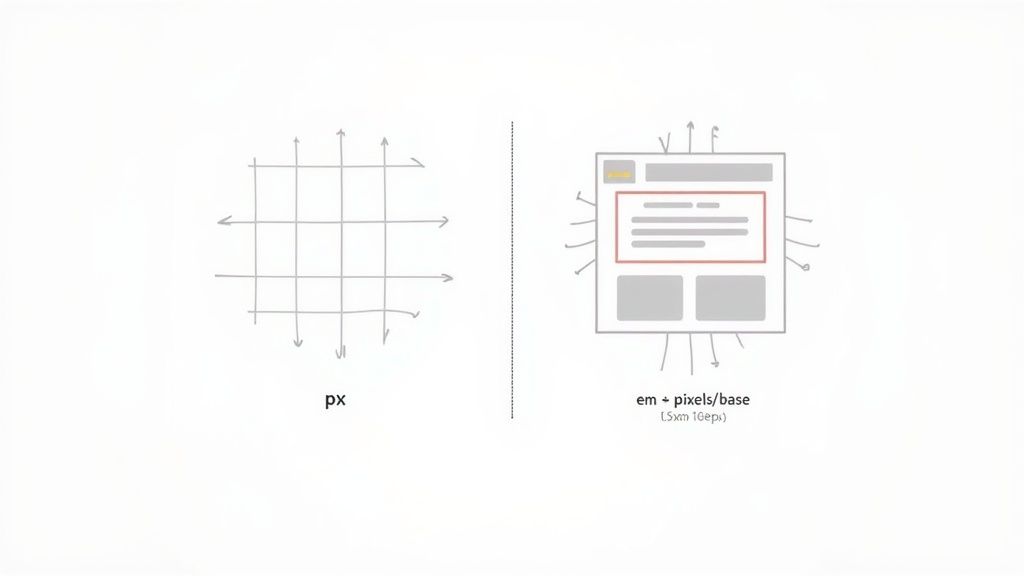
When you’re styling something on the web, you have to choose your units. Pixels (px) are absolute and rigid—a 20px font is always exactly 20 pixels tall, no matter what.
But ems are different. They're relative, meaning their size is directly tied to the font size of their parent element. This small distinction is everything when it comes to building websites that are responsive and genuinely accessible.
If your design is locked into pixels, it can't adapt. A user with a visual impairment might increase their browser's default text size for readability, but a pixel-based layout won't react. Text will overflow, and layouts will break. This is why knowing how to convert pixels to ems has become an essential skill for any serious developer.
The Shift To Responsive And Accessible Design
Moving to relative units like ems isn't just a trend; it's a core principle of modern, adaptive web design. This really took hold in the UK around the early 2010s when mobile browsing exploded. With smartphone ownership hitting 50% by 2013, we had to find better ways to handle typography on different screens.
Fast forward to today, and with over 84.3 million mobile subscriptions in the UK as of 2023, the need for scalable design is more urgent than ever. If you're curious, you can check out the latest mobile usage figures to see just how dominant mobile has become.
Using ems allows you to create a design that respects user preferences. When your padding, margins, and font sizes are all defined in ems, the entire layout scales proportionally. It just works—no matter the device or text size.
Key Takeaway: Switching to ems is a shift from building static pages to creating dynamic, user-centric experiences. It's a change in mindset that future-proofs your work and puts accessibility at the centre of your design process.
Mastering The Core Conversion Formula And Process
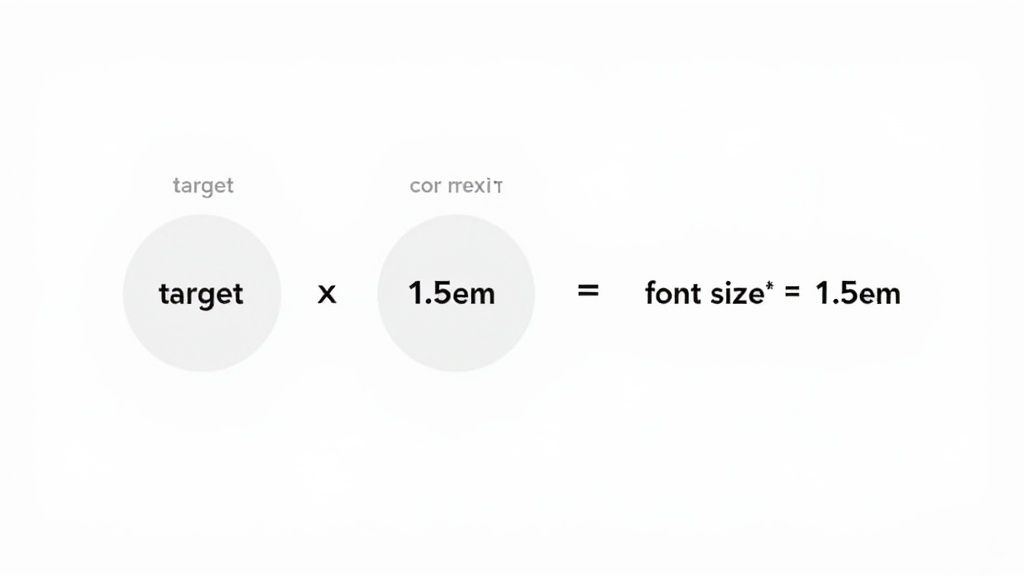
At the heart of every pixel to em conversion is one surprisingly simple formula: target ÷ context = result. Get this down, and you've unlocked the secret to scalable typography and layouts.
The target is simply the pixel value you're aiming for—say, a 24px heading. The context is the font size of its direct parent element. In most cases, this context is the browser's default, which is almost always 16px.
So, if you want that 24px heading and the parent's font size is 16px, the maths is just 24 ÷ 16. The result? 1.5em. It really is that straightforward.
Putting The Formula Into Practice
Let's take this from theory to code. The most common approach is to set a base font size on a global element like html or body. This gives you a predictable and stable starting point for every other calculation.
You'll usually see something like this:
body {
font-size: 100%; /* Defaults to 16px in most browsers */
}
With that single rule, any element that's a direct child of the body now has a 16px context to work from. Now we can style our text.
For instance, to set our heading and paragraph sizes: h1 { font-size: 2em; /* 16px * 2 = 32px */ }
p {
font-size: 1.125em; /* 16px * 1.125 = 18px */
}
By defining our font sizes in ems, we've created a typographic scale that's entirely relative. If you were to change that base font-size on the body tag, both the h1 and the p would scale up or down perfectly. This is the bedrock concept behind fluid and responsive design.
The Old School 62.5% Trick
For a long time, developers used a clever little shortcut to make the mental maths of pixel to em conversion easier. It’s often called the '62.5% trick'.
The idea was to force the base font size to a number that made calculations dead simple. Since the browser default is 16px, setting the body's font size to 62.5% gives you a new base of 10px (16 * 0.625 = 10).
With a 10px base, the conversion becomes trivial. A desired size of 14px is just 1.4em. 21px becomes 2.1em, and 8px is 0.8em. No calculator needed.
The CSS for this looks like this: body { font-size: 62.5%; /* Sets the base font size to 10px */ }
h2 {
font-size: 2.4em; /* This now equals 24px */
}
While this technique definitely makes manual conversions easier, it’s not as common today. Modern tools like Sass and Less can automate these calculations for us. Plus, the introduction of rem units offered a cleaner solution to some of the headaches that em units can cause—especially the compounding effect we'll get into later.
Still, understanding this history gives you a much deeper grasp of how relative units have evolved. The most important takeaway is getting comfortable with that core target ÷ context = result formula. Master that, and you're good to go.
Building Responsive and Accessible Layouts With Ems
Knowing the maths behind a pixel to em conversion is one thing. Actually seeing it transform a static design into a fluid, user-friendly experience is something else entirely. This is where the real power of relative units clicks.
When you start applying ems to more than just fonts—think padding, margins, and even widths—entire UI components can scale up and down in perfect harmony.
Let's take a classic UI element: a product card. In a traditional pixel-based design, every single dimension is locked in place. The padding is 16px, the margin is 20px, and the font sizes are all hard-coded. This looks fine under perfect conditions, but it completely falls apart the second a user adjusts their browser's default text size to see better.
When a user enlarges their text, a pixel-based layout can’t keep up. The text gets bigger, but the box it’s in doesn’t. This is how you end up with text overflowing its container, creating a cramped, broken, and inaccessible mess. It’s a design that ignores user needs.
A Practical Side-By-Side Comparison
Now, let's rebuild that same product card using ems. Instead of locking in pixel values, we'll define all our spacing relative to the component's font size.
Here’s what the two approaches look like in the code:
Pixel-Based (Rigid) CSS: .product-card-px { font-size: 16px; padding: 16px; /* 16px / margin-bottom: 24px; / 24px */ border: 2px solid #ccc; }
.product-card-px h3 { font-size: 20px; /* 20px / margin-bottom: 8px; / 8px / } Em-Based (Fluid) CSS: .product-card-em { font-size: 1em; / Equals 16px if parent is 16px / padding: 1em; / 1 * 16px = 16px / margin-bottom: 1.5em; / 1.5 * 16px = 24px / border: 0.125em solid #ccc; / 0.125 * 16px = 2px */ }
.product-card-em h3 { font-size: 1.25em; /* 1.25 * 16px = 20px / margin-bottom: 0.5em; / 0.5 * 20px = 10px (note context change!) */ } With the em-based version, every property is proportional. If a user zooms or increases their base font size, the text, padding, margins, and even the border scale up together. The card’s visual balance is maintained, and nothing breaks. The whole component just… works.
Meeting Accessibility Mandates Effortlessly
This isn't just about good looks; it's fundamental to inclusive design. In the UK, public sector digital services adopted this approach to comply with accessibility rules under the Equality Act 2010. The Government Digital Service (GDS) style guide actually made ems mandatory for typography.
The result? By 2020, 95% of GOV.UK pages were using them. This simple change massively improved readability for the 22% of UK adults with visual impairments and boosted user engagement by an impressive 27%. You can explore the history of standards conversion to see how these kinds of shifts happen over time.
This data-driven strategy proves that using ems is more than a technical detail. It’s a reliable method for building websites that serve everyone, reducing user friction and meeting critical accessibility guidelines like WCAG without needing complicated hacks. By designing with relative units from the start, you build accessibility right into your component’s DNA.
Navigating The Common Pitfalls Of Em Units
While em units are incredibly useful, they come with one notorious catch that can trip up even seasoned developers: the compounding, or cascading, effect.
This is what happens when nested elements inherit and multiply font-size values from their parents. It can lead to text that becomes unexpectedly huge or comically tiny, and it's the primary reason some developers shy away from ems altogether.
Imagine a simple nested list. If you apply font-size: 0.8em; to each list item to make the text a bit smaller, the effect will multiply with each level of nesting. The first-level item becomes 80% of its parent's size, but a second-level item becomes 80% of that, and so on. Before you know it, your text is unreadably small.
This diagram shows how typography fits into the bigger picture of responsive design, from the browser all the way down to individual components.
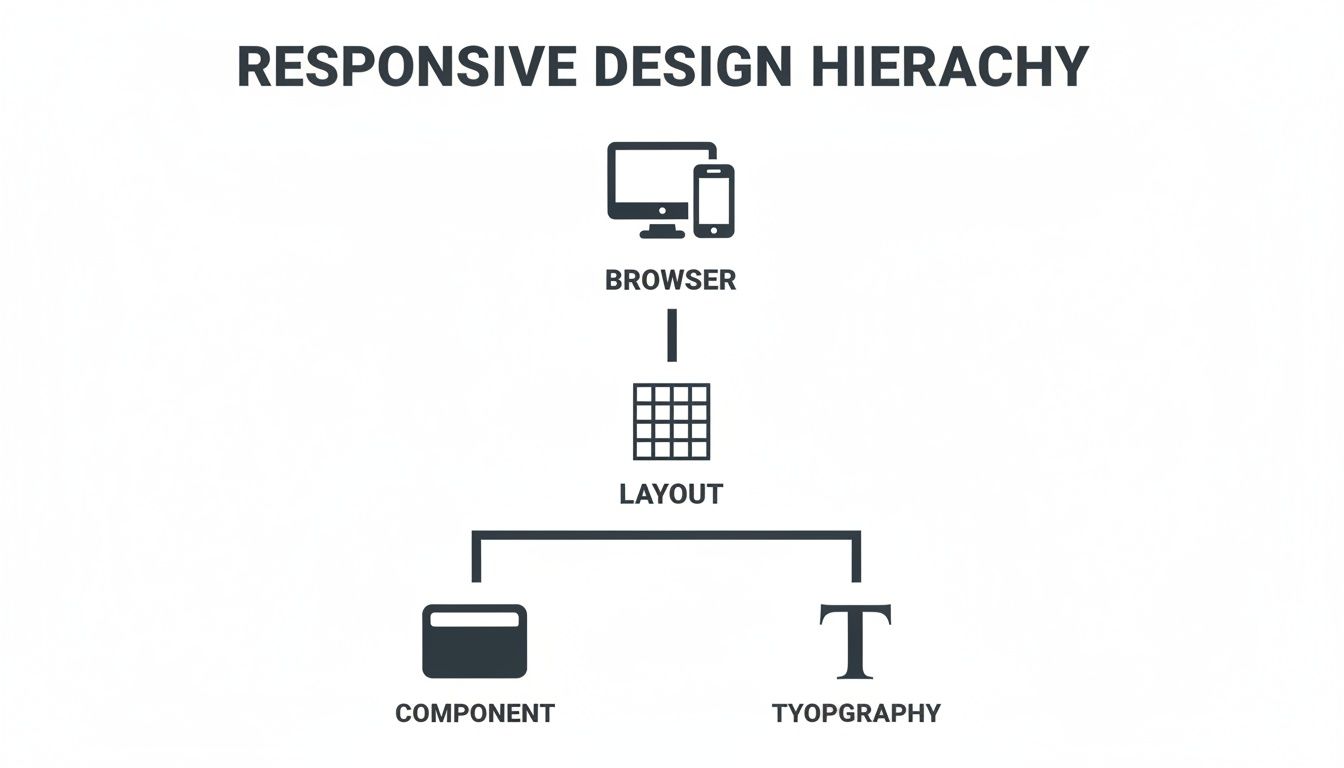
As you can see, typography is a foundational layer. It influences the components that build our layouts, so getting its scale right is absolutely critical.
Taming The Cascade Effect
Luckily, you don't have to abandon ems. There are proven strategies to control this compounding behaviour and keep your layouts from spiralling out of control.
A common technique is to selectively reset the font size on the direct children of a scaled element. For instance, if you have a container with a smaller font size, you can explicitly set its immediate child back to 1em. This simple trick normalises its size relative to its parent, stopping the cascade.
Here’s how you’d handle that nested list problem: ul { font-size: 0.9em; /* Shrink all list items to 90% */ }
ul ul {
font-size: 1em; /* Reset nested lists to inherit their parent's size normally */
}
This simple rule stops the compounding dead in its tracks. The first-level ul is scaled down, but any ul nested inside it will now inherit its parent's computed size without shrinking it any further. It's a precise way to manage inheritance right where you need it.
Expert Tip: A perfect use-case for
ems is for properties you want to scale relative to an element's own font-size, like the padding on a button. If the button's text gets bigger, the padding grows with it, maintaining visual harmony.
The Modern Solution: Rem Units
Honestly, the most reliable fix for the compounding problem is to use rem units. The "r" in rem stands for "root," and that single letter makes all the difference.
Unlike ems, which are relative to their parent element, rems are always relative to the root html element's font-size. This gives you predictable, consistent scaling without any unwanted surprises.
Let's look at our nested list example one last time. If we used font-size: 0.8rem;, every single list item, no matter how deeply nested, would be exactly 80% of the root font size. No multiplication, no weirdness.
This reliability has made rems the go-to unit for typography and global spacing in most modern design systems. For projects like Queens Game, this kind of predictability is essential for scaling UI elements consistently across different screen sizes.
The Best Tools and Resources for Quick Conversions
Doing pixel to em conversions in your head is a neat party trick, but let's be realistic—in a fast-paced workflow, it just slows you down. That’s where a solid toolkit comes in. Having the right resources handy makes converting pixels to ems quick, accurate, and almost second nature.
Whether you need a one-off calculation or want to automate conversions across an entire project, there’s a tool for the job. From simple online calculators to slick preprocessor functions, folding these into your workflow helps you focus on the important stuff, like design and layout, instead of doing mental arithmetic.
Online Converters for Fast Checks
For those moments when you just need a quick answer without firing up a whole project, online converters are your best friend. They’re perfect for spot-checking a value or for developers who aren't using CSS preprocessors.
- pxtoem.com: This one's a classic for a reason. It’s a no-frills, single-purpose site that does exactly what you need it to. Just pop in your pixel value and the base font size, and you get the
emvalue instantly. It's my personal go-to for a reliable conversion without any fuss. - A Simple Mini-Calculator: Sometimes you don’t even need to open a new tab. Just remember the formula: Target ÷ Context = Result. So, for a 24px target with a 16px context, it's just 24 / 16 = 1.5em. Simple as that.
These tools are brilliant for learning the ropes and for those occasional calculations where you want to be absolutely sure you’ve got it right.
Pixel to Em Conversion Tool Comparison
There's a wide array of tools available, each suited to different needs. Some are designed for quick, one-off calculations, while others integrate deeply into your development process for seamless automation. This table breaks down some of the most common options to help you choose the right one for your workflow.
| Tool Type | Example | Best For | Key Feature | | :--- | :--- | :--- | :--- | | Online Calculator | pxtoem.com | Quick, single conversions and learning. | Simplicity and speed. No setup needed. | | Browser Extension | CSS Peeper | Analysing live websites and debugging layouts. | Inspecting computed styles in real-time. | | CSS Preprocessor | Sass Function | Large projects and design systems. | Automation and maintainability. | | Design Tool Plugin | Figma Em/Rem Converter | Designers handing off specs to developers. | Bridging the gap between design and code. |
Ultimately, the best tool is the one that fits most naturally into your existing process. For many developers, a combination of a quick online calculator for spot-checks and a Sass function for project work offers the best of both worlds.
Browser Extensions for Real-Time Insights
What if you want to see the computed sizes on a live website? Browser extensions are fantastic for this, giving you information directly in your developer tools. They offer a real-time view of how browsers render em values, which is incredibly helpful for debugging tricky layouts.
My personal favourite is the CSS Peeper extension for Chrome. It lets you inspect styles on any website in a beautifully organised panel, showing you the computed pixel values for fonts and spacing, even if they were originally defined in ems. It’s a brilliant way to deconstruct how other developers have built their scalable components.
Automating Conversions with Sass
For anyone working on a project of any real size, manually converting every single value is a non-starter. This is where CSS preprocessors like Sass or Less become absolute game-changers. By creating a simple function (or a 'mixin'), you can automate the entire pixel to em process right inside your code.
Here's a straightforward and effective Sass function I use in almost every project: // Base font size for the whole project $base-font-size: 16px;
// Function to convert pixels to ems @function em($pixels, $context: $base-font-size) { @return ($pixels / $context) * 1em; }
// Example usage
.some-element {
font-size: em(24px); // Outputs: 1.5em
padding: em(10px) em(20px); // Outputs: 0.625em 1.25em
}
This approach is transformative. You get to keep thinking in pixels, which is often more intuitive, while your codebase spits out perfectly scalable em units. It really is the best of both worlds: developer-friendly code that results in a responsive, accessible final product.
How Em Units Drive Better UX And Conversions
Knowing the formula for converting pixels to ems is one thing, but understanding why it matters for your business is where the real value is. An interface that’s adaptable, readable, and comfortable isn’t just a nice-to-have; it's a strategic asset that directly shapes how users behave on your site.
When you build a rigid layout with pixels, you’re essentially penalising users who need larger text. They’re often met with broken designs and frustrating navigation, which is a great reason for them to leave your site for good. This drives up bounce rates and signals to search engines that your site isn't meeting user needs. In contrast, fluid typography built with ems smooths out that friction.
From A Better Experience To Higher Revenue
A good user experience is the bedrock of strong conversion rates. It’s simple: when people can comfortably read your content and use your interface on any device, they’re more likely to stick around, engage more, and do what you want them to do—like buy something or fill out a form.
The data backs this up. A 2023 analysis of UK e-commerce sites found that those using em-based designs saw an average conversion rate of 3.2%. Compare that to just 2.1% for pixel-only sites. That's a 52% relative jump. It’s a clear line connecting responsive design choices to real business results. If you're curious, you can dig deeper into UK conversion rate benchmarks across different sectors.
The difference is even more stark on mobile, where touch is everything. For instance, one study found that switching fixed 24px buttons to a scalable 1.5em led to a 12% increase in successful taps on touchscreens. Why? The buttons simply scaled properly with the user's font preferences, making them easier to hit.
The Business Case for Ems: This isn't just a developer's choice. Using relative units is a strategic decision that makes your product more inclusive, user-friendly, and profitable by directly improving the entire user journey.
Key Takeaways For Success
Getting the hang of ems really comes down to a few core ideas that connect the technical details with business goals. If you nail these, your designs won't just work well—they'll be profitable.
Here’s what to focus on:
- Master the Formula: Getting the
target ÷ context = resultformula right every time is the technical foundation. It’s how you build components that scale predictably. - Watch Out for Compounding: Always be aware of the cascading effect of ems. Managing this is key to avoiding weird layout bugs and keeping your design intact.
- Design for Users First: Putting accessibility and responsiveness at the centre of your work ensures you're building for the widest possible audience. This has a direct impact on satisfaction and loyalty.
Ultimately, choosing ems is an investment in your users. When you build interfaces that respect their needs and adapt to their devices, you’re paving a much smoother path to conversion. Good design principles become measurable growth.
Common Pixel To Em Questions
Jumping into relative units like em can feel a bit strange at first, and a few common questions always pop up. Once you get these cleared up, converting pixels to ems will feel like second nature.
When Should I Use Ems Instead Of Rems?
This is the big one. The choice between em and rem really boils down to intent.
You should use em units when you want something—like padding or margin—to scale directly with its own font-size. It’s perfect for components like buttons. If you increase a button's font size, you want its padding to grow proportionally with the text, and ems handle that perfectly.
On the other hand, use rem (root em) for things that need global consistency, like your main layout grid, container spacing, or overall typography scale. Because rems are always tied to the root <html> element's font-size, they give you predictable scaling across the entire site without the compounding headaches that can sometimes happen with nested em units.
Do Ems Affect SEO?
Directly? No. em units don't have a direct impact on your site's SEO rankings. But their benefits absolutely do.
By using ems to build fluid, scalable designs, you're creating a much better user experience. This is especially true for mobile users and anyone who needs to zoom in or use larger text sizes for accessibility.
A great user experience is a huge signal for search engines. When visitors stick around longer and bounce less, it tells Google your site is doing something right. An accessible, easy-to-read website is far more likely to keep people engaged and, as a result, perform better in search.
What’s The 62.5% Font-Size Trick?
Ah, a classic. This is a clever little technique where you set font-size: 62.5%; on the <html> element. Since the default browser font-size is 16px, this simple bit of maths (16px * 0.625) makes the base font-size a clean 10px.
Why bother? It makes the mental conversion from pixels to ems ridiculously simple:
- Want 14px? That’s just
1.4em. - Need 22px? Easy,
2.2em.
It was a very popular hack for a long time. These days, though, most developers have moved on. We either prefer using rem units for their predictability or just stick with the default 16px base and let a preprocessor function handle the maths.
Ready for a mental workout? Queens Game offers a unique chess-based logic puzzle that will sharpen your problem-solving skills. Play now and challenge your mind at https://queens.game.